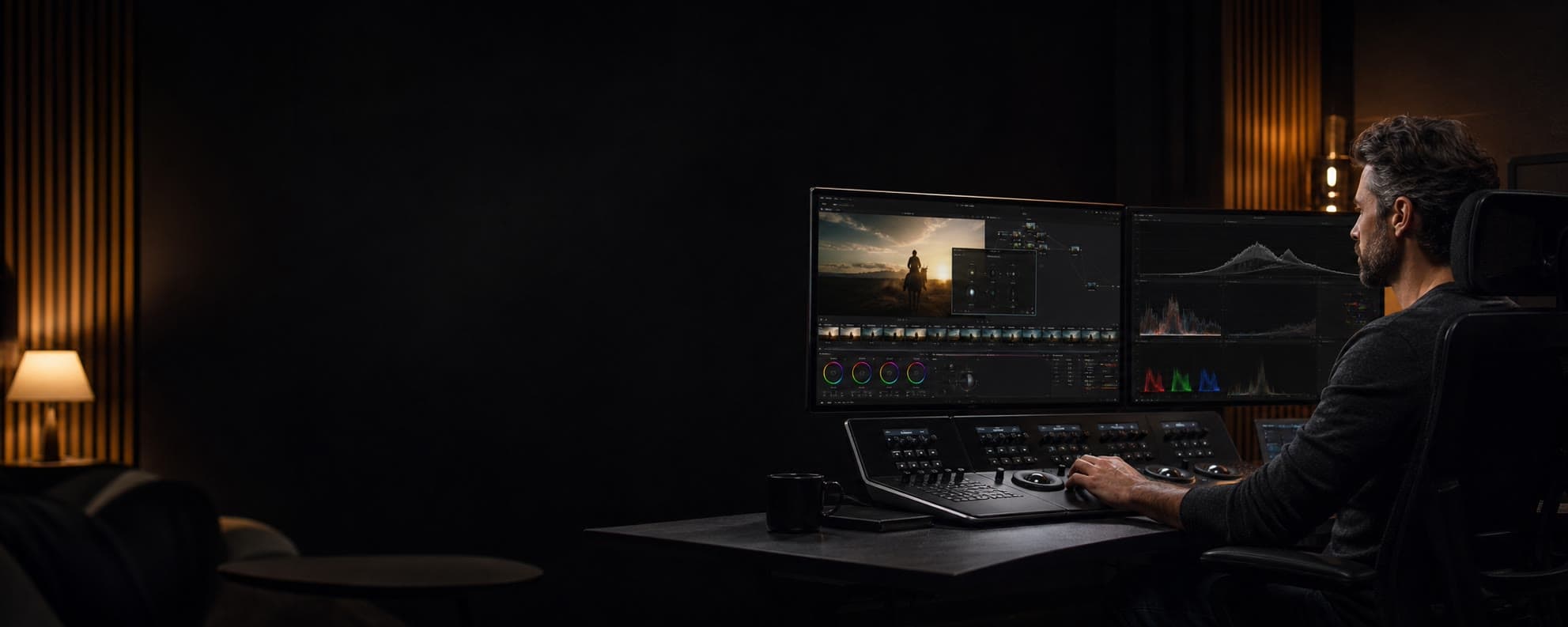
AI creation, inside DaVinci Resolve.
HEIBA AI Studio Plugin brings AI image and video creation into Resolve. Download completed works, then import them into the Media Pool and your current timeline.
Create. Back to the timeline.
Start AI creation inside Resolve and bring completed works into the Media Pool and timeline.
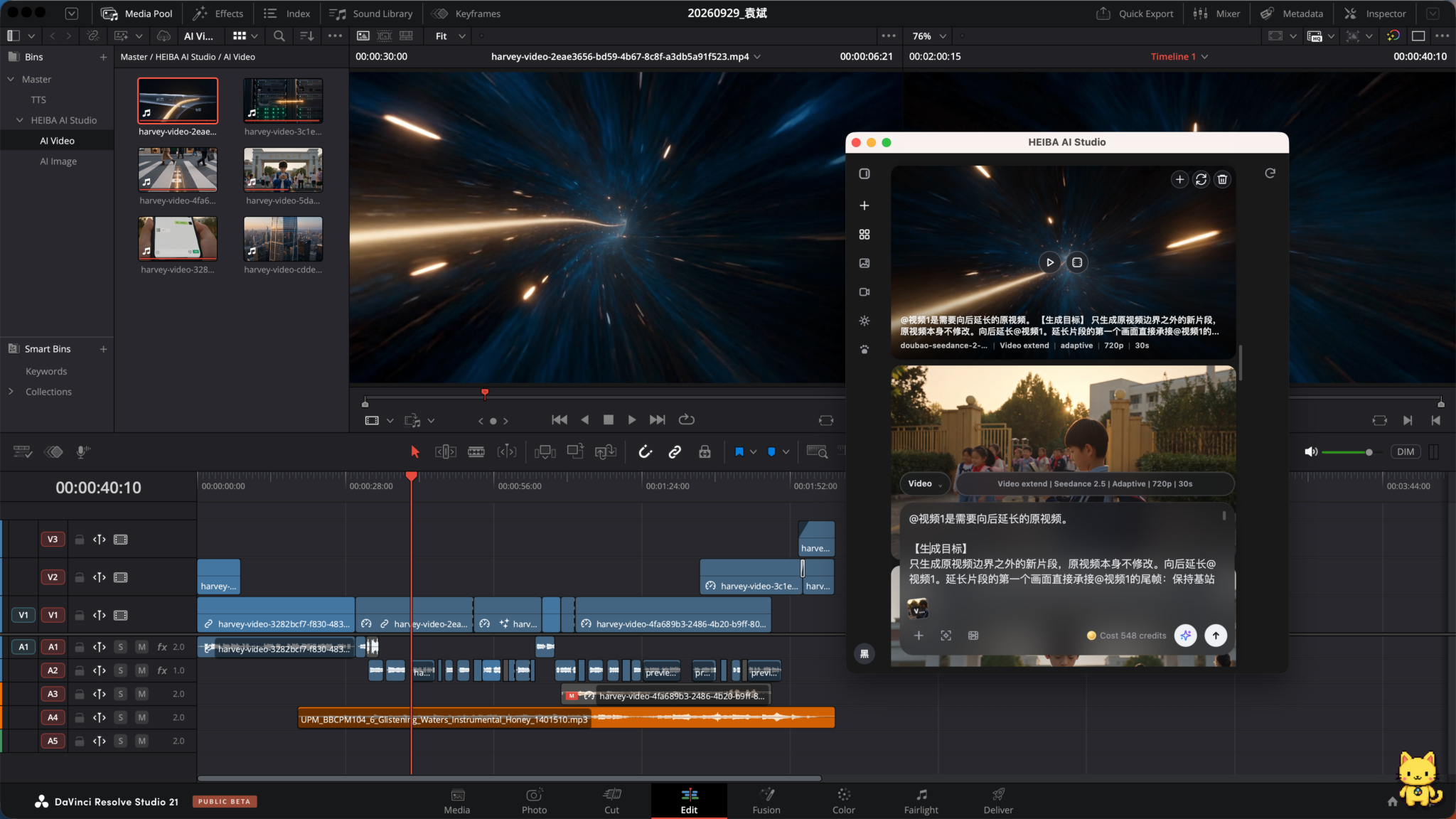
Keep the picture moving.
Reference & Extend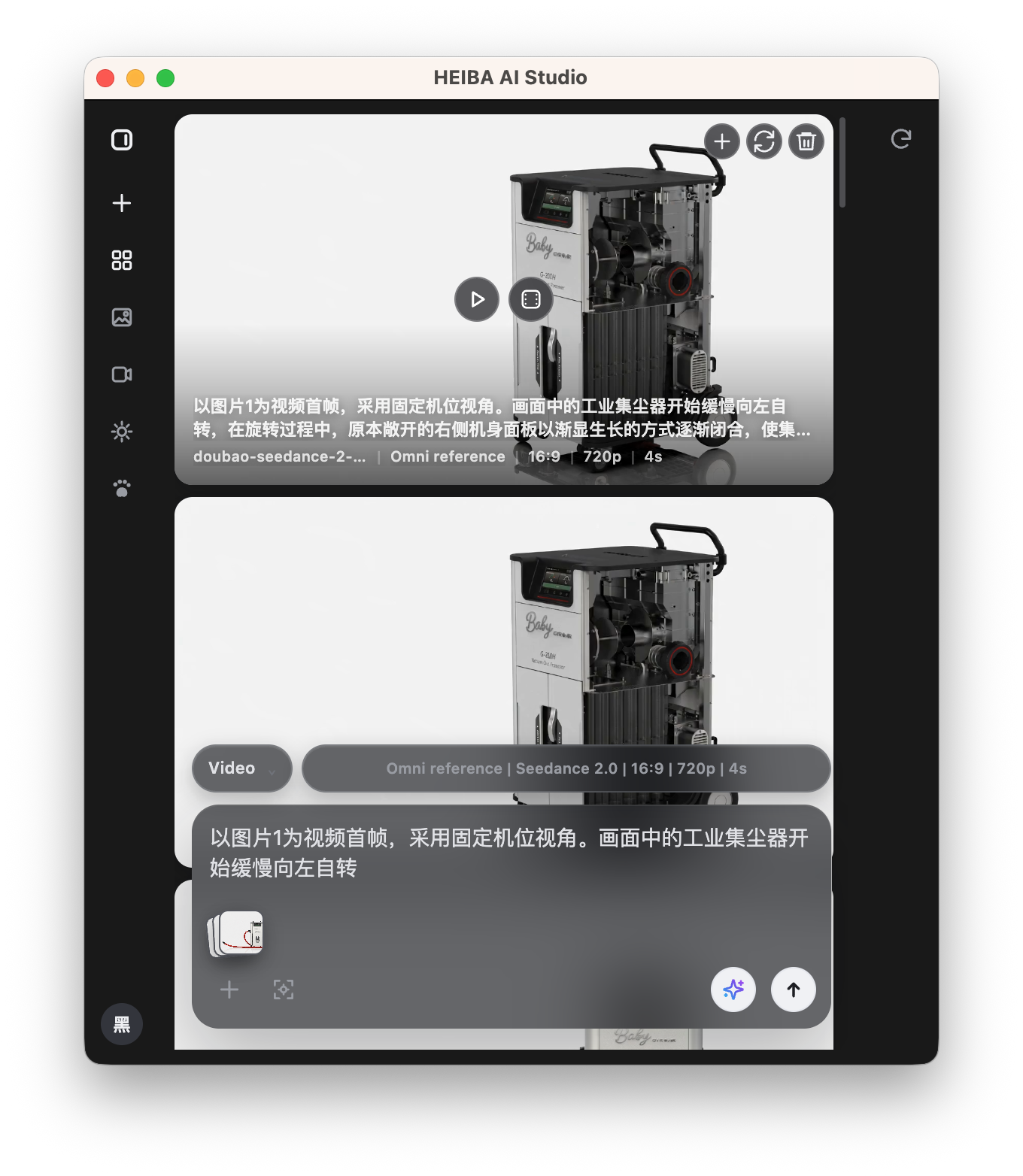
Create from references
Use reference images to create video clips.
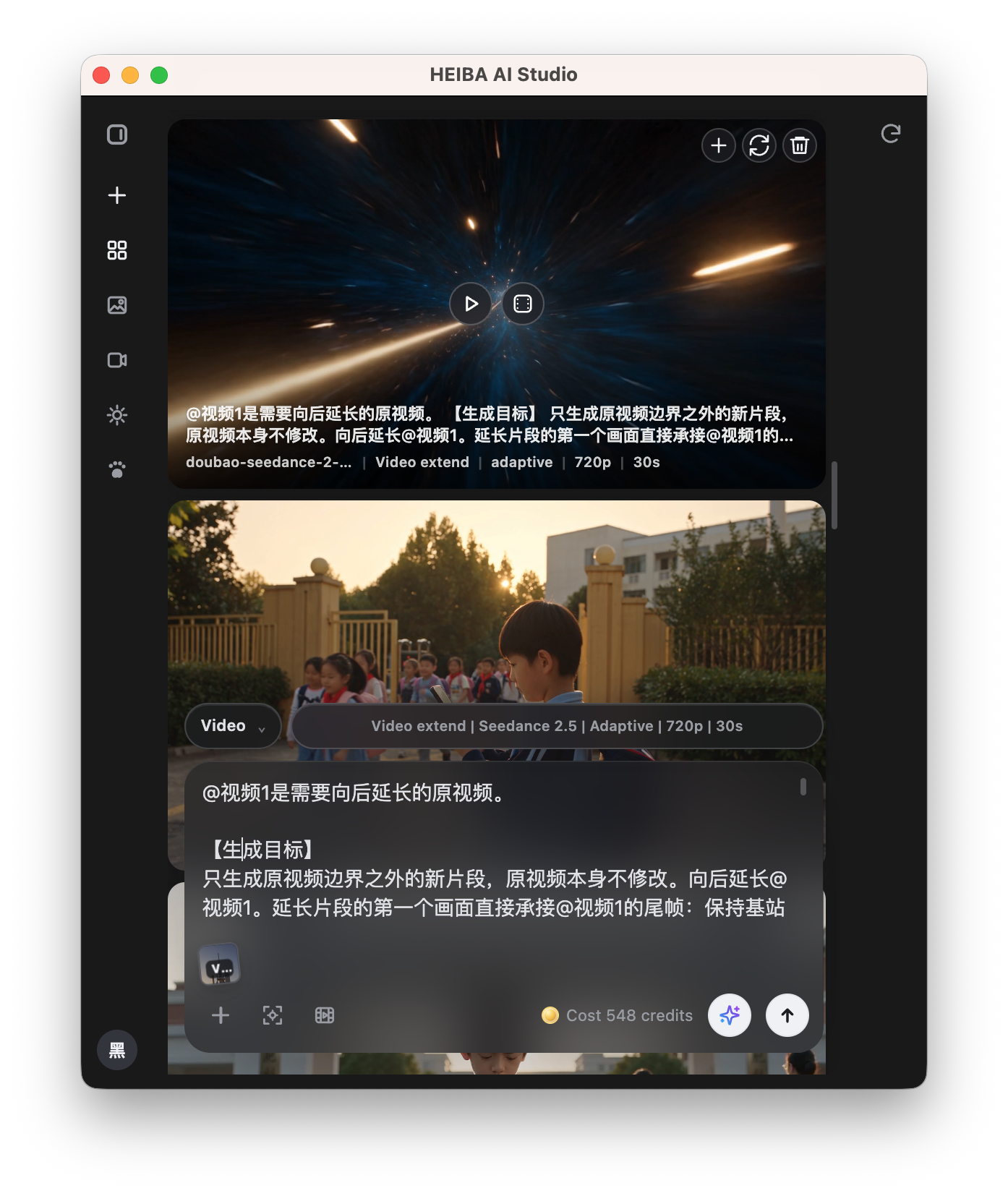
Extend your video
Continue a shot by extending an existing video clip.
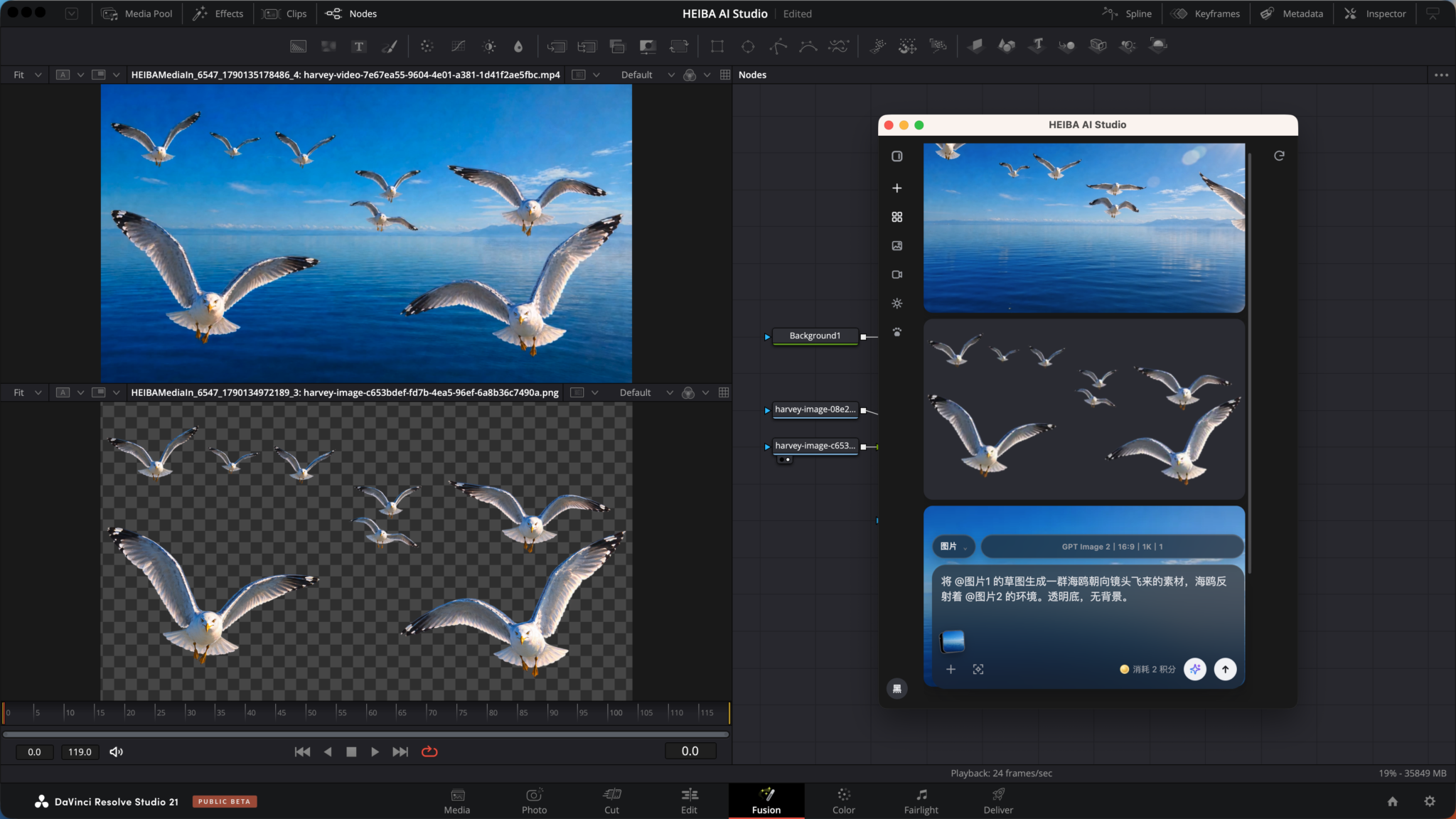
Straight into Fusion.
Bring transparent assets into Fusion for compositing with nodes.
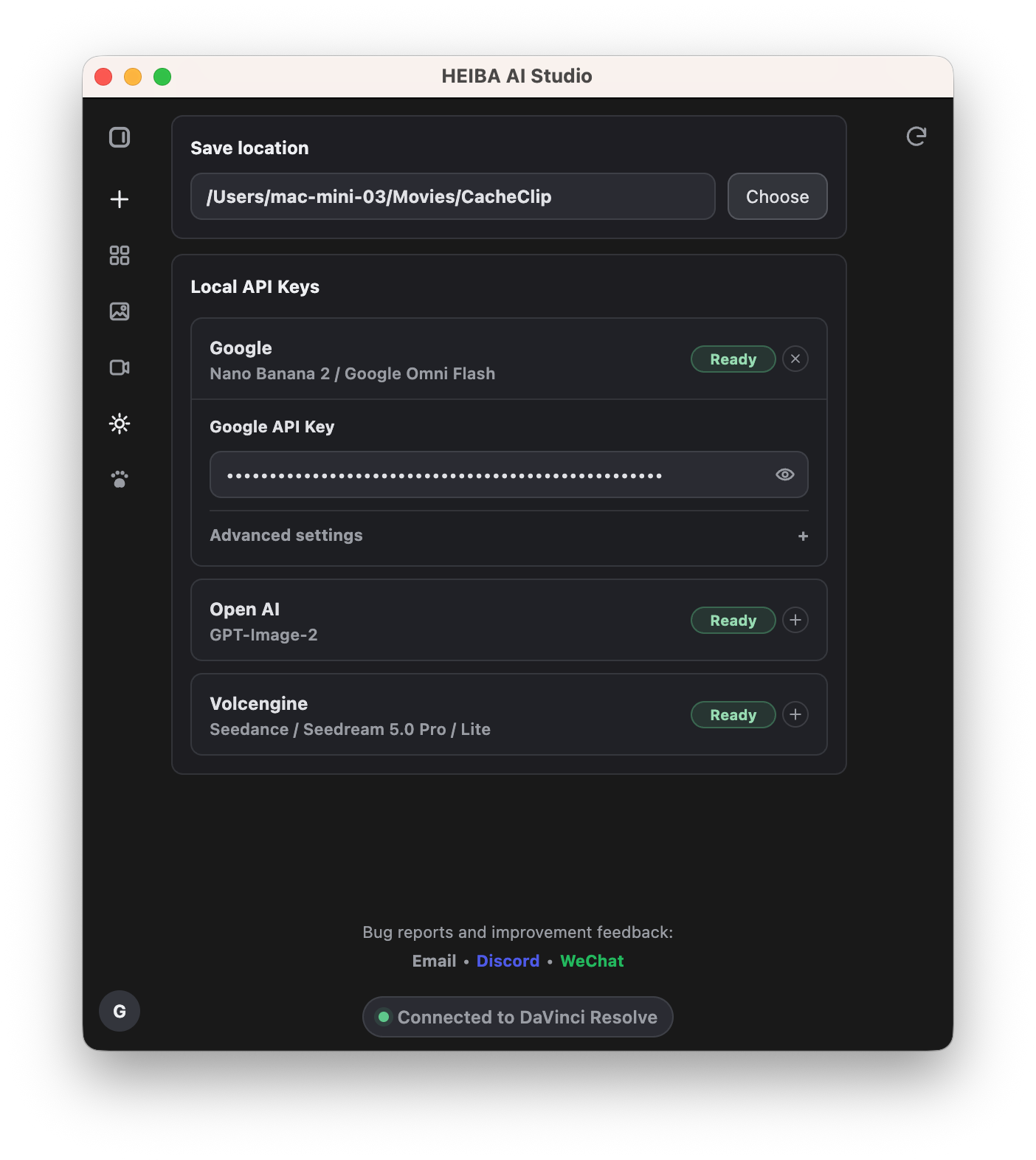
Your ownAPI keys.
Configure your Google, OpenAI, and Volcengine API keys inside the plugin.
AFTER DOWNLOAD
Install in three steps
From installer to HEIBA AI Studio in DaVinci Resolve.
Download the pkg or exe
Choose the pkg for macOS or exe for Windows.
Double click to install
Open the downloaded file and follow the installer.
Open HEIBA AI Studio
In DaVinci Resolve, open Workspace > Workflow Integrations and find HEIBA AI Studio.
FAQ
View allWhere do I open the plugin after installation?
In the DaVinci Resolve menu bar, open Workspace > Workflow Integrations and choose HEIBA AI Studio.
How do I add a completed work to the timeline?
Download the completed work inside the plugin first, then choose Add to current playhead. The file is imported into the HEIBA AI Studio Media Pool bin and placed at the current playhead.
Can I use my own API keys?
Yes. You can configure Google, OpenAI, and Volcengine API keys inside the plugin.
How is the plugin different from the web version?
The web version provides AI creation, project assets, and version management in a browser. The plugin brings AI creation into DaVinci Resolve, with download and import for completed works.